
Arcnode Remote
Work in ProgressSecure remote support and remote desktop for Windows.
Overview
About this project
Arcnode Remote is a remote support and remote desktop app for Windows, built with Tauri 2, a Rust engine and a React interface. It is built security first. Helpers sign in with their Arcnode account; the person being helped needs no account and sees the helper's name and picture, confirmed by Arcnode, before anything happens. To help someone over the internet, the helper creates a nine-digit code that works once and expires after ten minutes; the Arcnode relay only pairs the two computers and forwards the session, which stays end-to-end encrypted. Both sides see the same six-digit verification code, and the request asks who started the session, with a clear warning when someone made contact out of the blue. You can watch every screen of the other computer, take control when they let you, chat and send files both ways. Support tools cover what IT support needs, each allowed by the person every time: hiding their screen while you work, pausing their keyboard and mouse, seeing their camera, and private input for typing a password unseen. While a helper has control, the edges of their screens glow. A trusted helper can also ask for any-time access: the person allows it once, the app then shows in the tray and starts with Windows, and they can turn it off at any moment. Helping others is for accounts Arcnode gives helper access. It updates itself with signed updates from Arcnode. It is in active development and so far has been tested with both ends on one PC; a test between two computers is next.
Capabilities
Highlights
- Help anyone over the internet with a one-time nine-digit code through the Arcnode relay, which cannot read the session
- Helpers sign in with Arcnode; the person being helped needs no account and sees who is asking, confirmed by Arcnode
- End-to-end encrypted sessions (Noise XX) with mutually authenticated device keys and forward secrecy
- Every session needs approval at the other computer, with the same six-digit verification code on both screens
- A "who started this?" check that warns about callers posing as a bank, Microsoft or a helpdesk
- View only or full control, and the person at the computer can take control back at any time
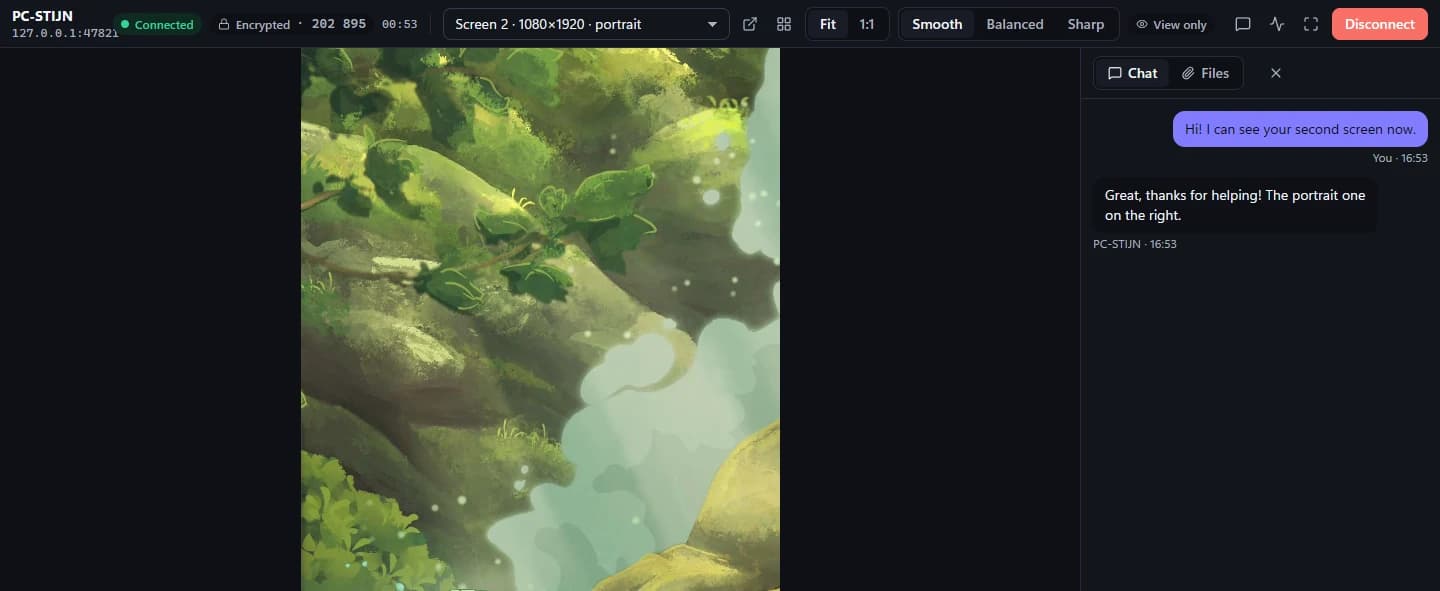
- Every screen of the other computer: pick one, see them all in their real layout or your own arrangement, or pop one out into its own window
- Portrait screens shown upright, full screen with an auto-hiding toolbar
- Smooth, Balanced and Sharp quality, at up to 60 frames per second
- Chat both ways, and file transfer both ways where the receiver accepts every file
- Clipboard text sharing, only when both sides turn it on
- Saved computers and a Keys menu for shortcuts such as Alt+Tab
- Support tools, each allowed every time: hide their screen, pause their keyboard and mouse, see their camera
- Private input for typing a password unseen: confirmed helpers only, at most three minutes, ended by the helper
- The edges of the screens glow while a helper has control, and only the person being helped sees it
- Ask for more during a session: control, clipboard and support tools at once, allowed item by item
- Any-time access for a trusted, confirmed helper: allowed once, shown in the tray, starts with Windows, off with one click
- Signed updates from Arcnode, never applied during a session
Walkthrough
Demo video
Gallery
Screenshots
FAQ
Questions about Arcnode Remote
- What is Arcnode Remote?
- A remote support and remote desktop app for Windows. You can see the screens of another computer, take control when the person there allows it, chat and send files, over a connection that is end-to-end encrypted.
- Can I download Arcnode Remote?
- If someone helps you, yes: their support link at remote.arcnode.dev gets you the app. Helping others needs helper access from Arcnode; it will be offered as a commercial product.
- Can someone connect to my computer without me knowing?
- No. Nobody can reach your computer unless you enter their code or turn on accepting connections, and every session needs you to select Allow. Before you do, you see who is asking, compare a six-digit verification code with them and say who started the session. You decide whether they may only view or also control, can take control back at any time, and can end the session whenever you want. While someone has control, the edges of your screens glow.
- How is a session protected?
- Sessions use the Noise XX protocol: both computers prove their identity with a device key, everything is encrypted end to end, and fresh keys are made for every session, so even a stolen device key cannot unlock past sessions. The verification code comes from that handshake, so someone in the middle would show a different code.
- Does it work over the internet?
- Yes. The helper creates a nine-digit code and reads it to you; you enter it under Get help. The code works once and expires after ten minutes, and guessing codes is slowed down and locked out. The Arcnode relay only pairs the two computers and forwards the session, which stays end-to-end encrypted, so it cannot see your screen. On the same network you can also connect directly. A trusted helper can also get any-time access, which you allow once and can turn off from the tray at any time.
- Can the helper hide my screen or lock my keyboard?
- Only if you allow it, every time. The helper can ask to hide your screen while they work, to pause your keyboard and mouse, or to see your camera; you can stop any of these whenever you want. For typing a password for you, a helper confirmed by Arcnode can ask for private input: your screen is hidden and your keyboard and mouse are paused for at most three minutes, and you agree not to stop it yourself. It ends as soon as they are done or disconnect, your screen shows who is working and a countdown, and Ctrl + Alt + Del always works.